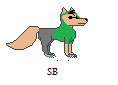
Ok so first:
1)Go to Layer. Go down to Transperency. Go to Colour To Alpha. Move the picture where you would want it. Just dont click the backround.
2)Make a new layer
3)Go to Layer. Go down to Transperency. Then go to Alpha To Seletion.
Then hit Select>>Grow
For small images keep it under 4 pixels.
4)Create a new layer. Change the bg colour to white. Then hit the patterns and click BG colour fill. After hit Fill Whole Selection. Then go back to your image and fill it with the white. Make sure to fill all the areas of the image so its not see through.
5)Once you have done this hit Ctrl L. Swap the layer with the one before it. Now hit Select>>None.
6)Now finnally to make the outline look faded go to Filters>>Blur>>Tileable Blur
Keep the settings as it is then hit OK.
credited by camaron.. she told me
Keep reading →